
Help
Guardians
Connecting With Other Families in the Guardian Directory
The Guardian Directory gives you a simple place to meet other families in your school. You can browse profiles, spot shared interests, and see who is open to things like mentoring, class visits, internships, or coffee chats, all while staying in control of what you share about yourself.
Your school chooses what to call this section, so you may see it labelled Parent Directory or guardian directory. Both names refer to the same feature.
Browsing the Directory
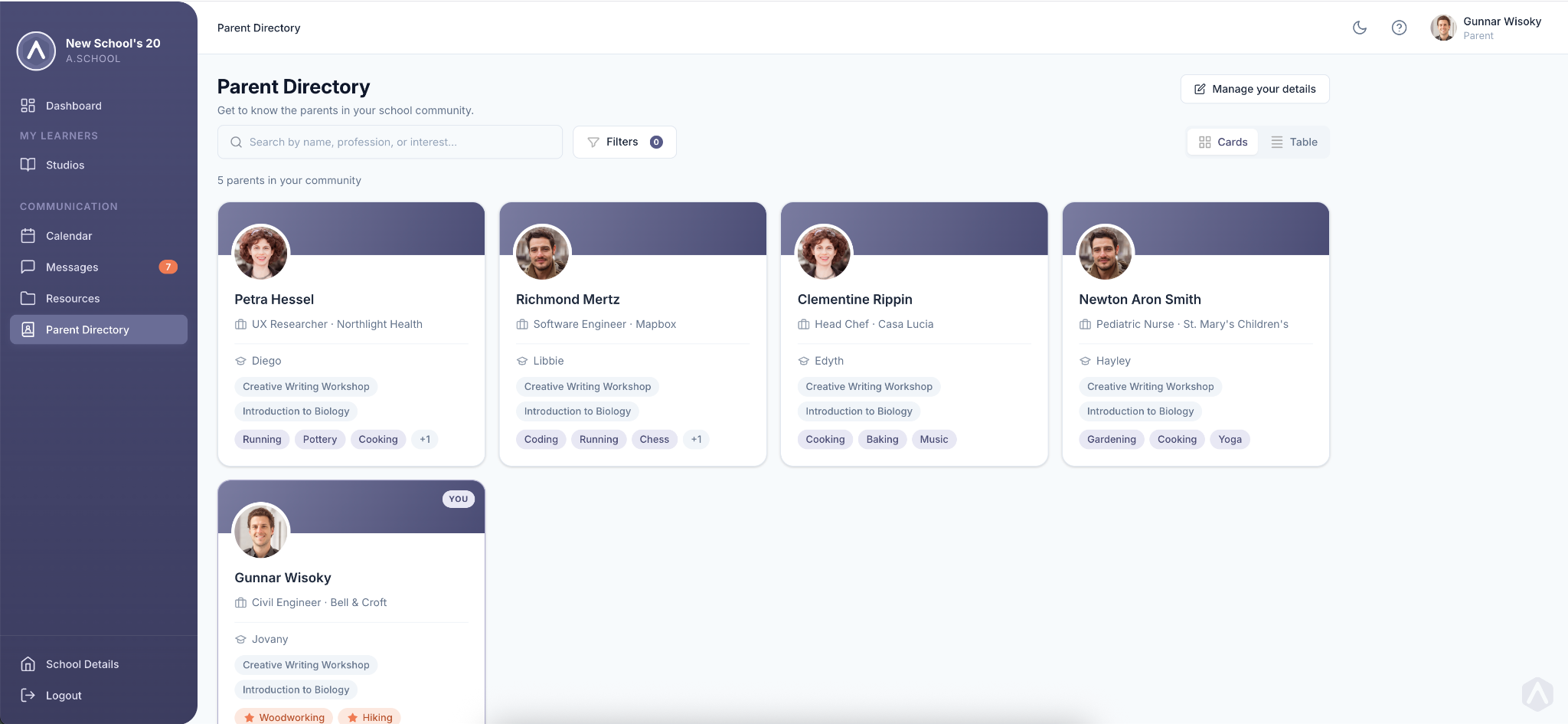
You’ll see every family in your school who is listed in the directory, so you can connect across the whole school community, not just the studios your own children are in.
To browse the directory:
- Log in and click Guardian Directory in the sidebar.
- On your first visit, review the welcome banner. From there, you can review your profile or dismiss the banner and start browsing.
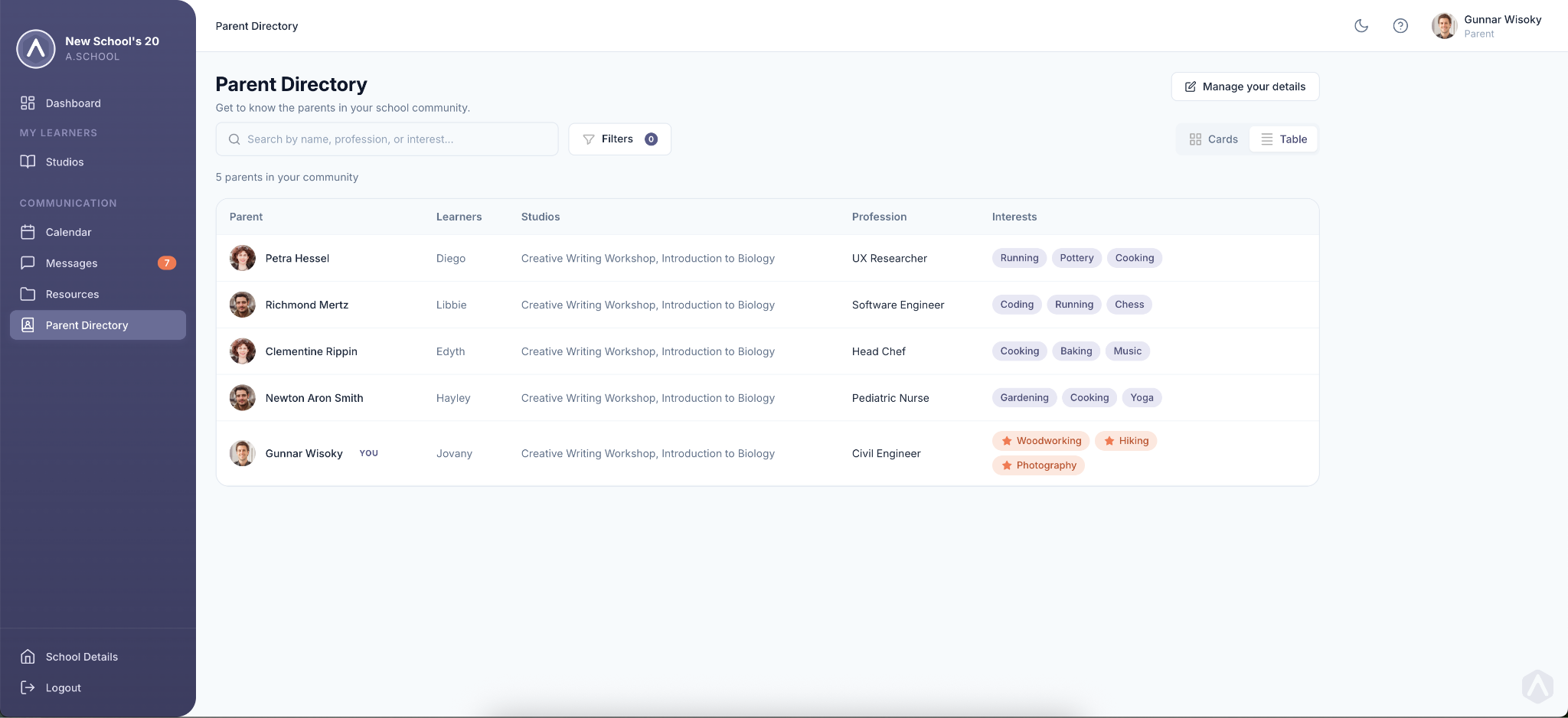
- View guardians as a card grid, or switch to table view if you prefer a sortable list.
- Click any guardian to open their profile drawer.
A guardian profile may include their photo, name, profession, employer, About section, interests, what they are open to, and their children’s first names with studios.
When you and another family share interests, those interests appear with a star. The profile drawer also highlights the overlap with a “You both enjoy…” callout, making it easier to spot natural connections.
Finding the Right Person
Use search and filters when you want to narrow the directory.
- Type a name, profession, employer, or interest into the search bar.
- Use the Interests, Classes/Studios, and Open to filters to narrow the list further.
- Watch the result count update as you search and filter.
- Remove an active filter by clicking its chip, or click Clear all to start over.
The Open to filter can help you find guardians who are open to things like mentoring, internships, class visits, or coffee chats.
Managing Your Own Profile
Your listing is yours to shape, and only you can edit it.
To update your profile:
- Click Manage your details, or open your account settings and find the Guardian Directory Profile card.
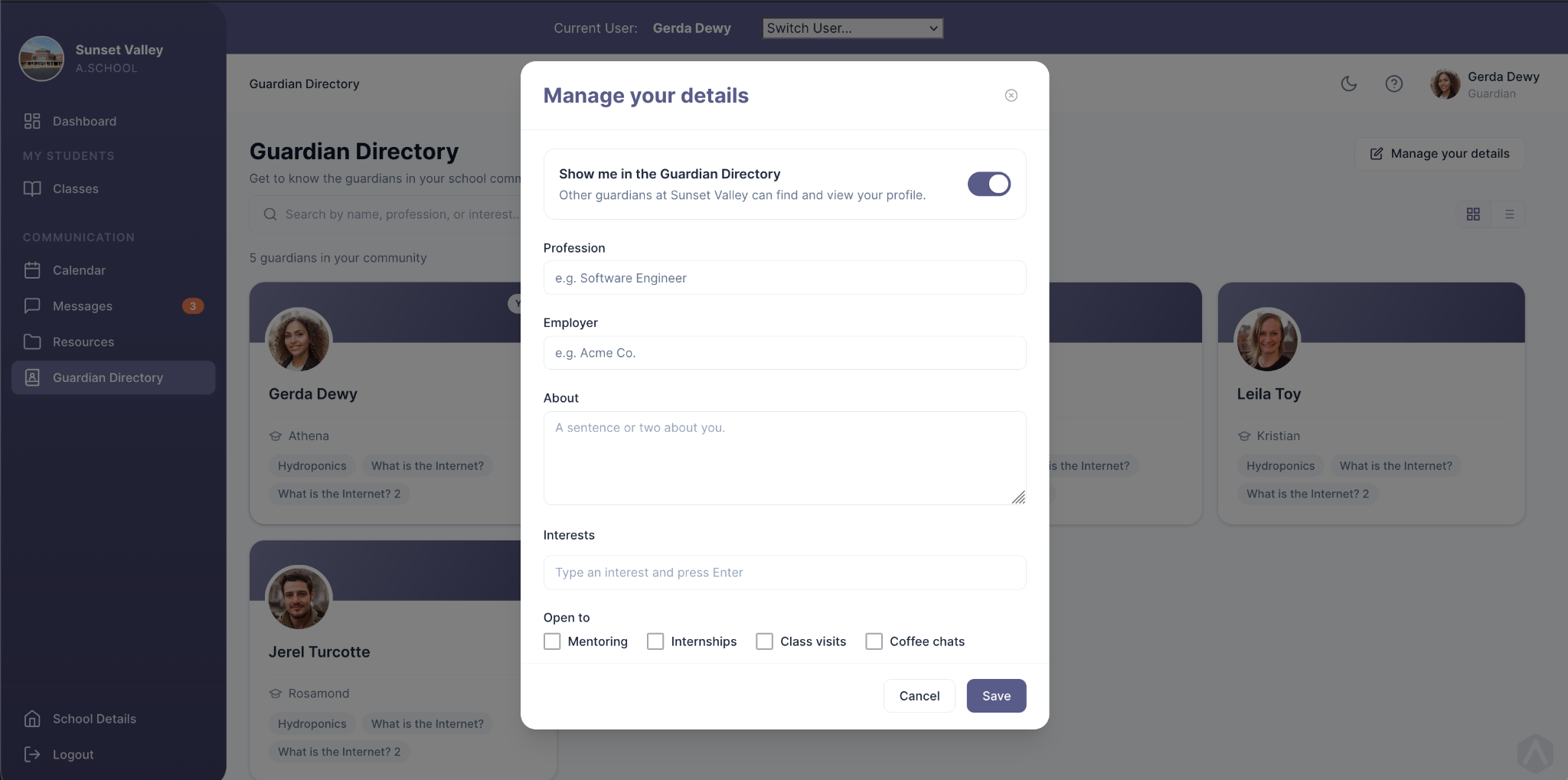
- Add your profession, employer, and a short About blurb.
- Add interests as tags. Suggestions from the community may appear as you type, and you can choose one of those or add your own.
- Choose what you are open to, such as Mentoring, Internships, Class visits, or Coffee chats.
- Save your changes.
The directory never shows your email, phone number, address, or other contact details. Families connect through the school in the usual ways, so your profile only shares your interests, background, and what you are open to.
Controlling Your Visibility
You are listed by default, and you can leave or rejoin the directory anytime.
To change your visibility:
- Open your profile from Manage your details or your account settings.
- Find the Show me in the Guardian Directory toggle.
- Switch it off to leave the directory, or switch it back on to rejoin.
When you are hidden, other families can’t find you through search, filters, or direct access, and your profile disappears from their view. You can turn visibility back on anytime.
What Schools Can See
School staff have a read-only, school-wide view of the directory under Guardians → Directory.
They see the same cards, table, search, and filters that families see, which helps them support and promote the directory. Staff can’t edit your profile, remove you, or change your visibility.
Your listing stays yours.
Still stuck? Shoot us an email and we’ll do our best to help.