
Help
Classes
Adding a Student
You must add a student to your school before you can assign them to any classes.
To add a student:
- Navigate to Users from the sidebar
- Select the Students tab
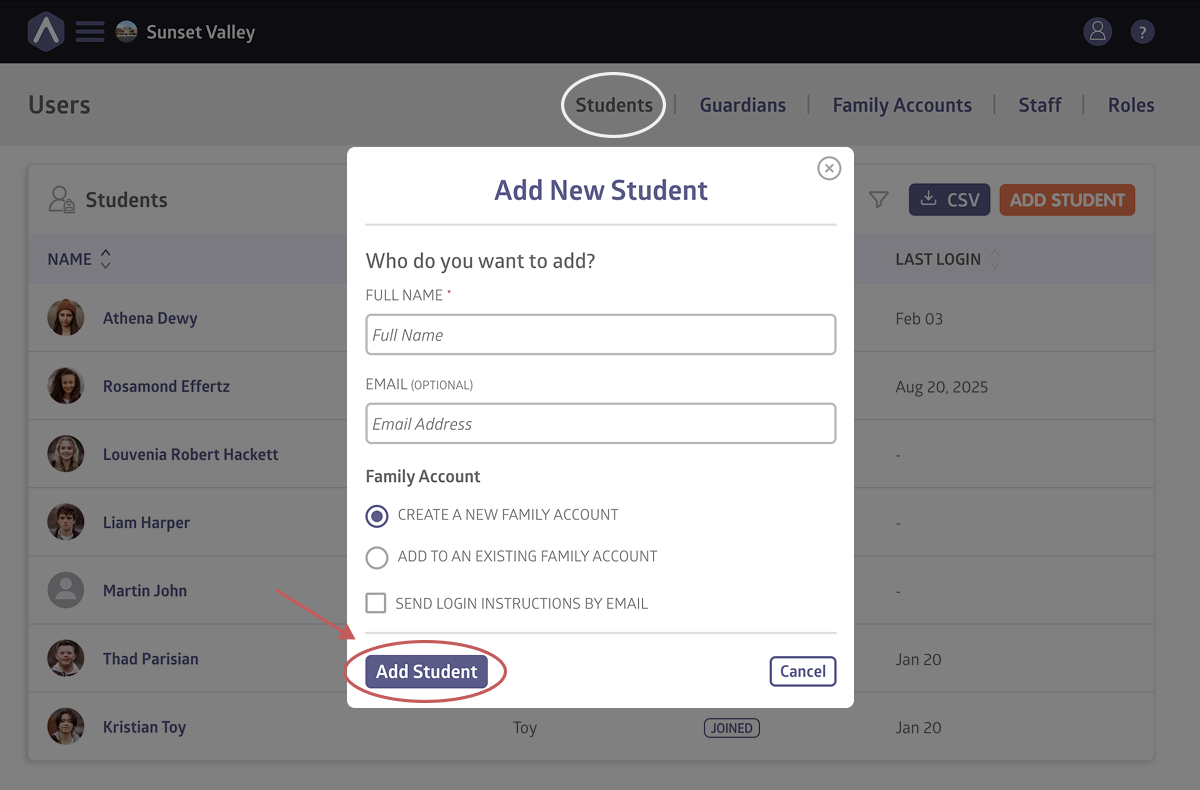
- Click Add Student
- Enter the student’s name
- (Optional) Enter their email address
- Select whether you want to add the student to an existing family account or create a new family account
- Check Send Login Instructions by Email if you want them to receive access immediately
- Click Add Student
Once added, the student will appear under the Students tab.
When Should You Send Login Instructions?
Send login instructions if:
- The student manages their own access
- You want them to enroll themselves in classes
- You are setting up accounts before the term begins
Skip it if:
- You’re enrolling them manually
- A guardian will manage access instead
Still stuck? Shoot us an email and we’ll do our best to help.